An image in a document doesn’t always just delight the eye. The brain processes visual information much faster than text, so an image can convey complex information very effectively. Sometimes the image will reinforce what has already been said in the text, or it may add information that is only available to the reader through visual perception.
This article focuses on illustrations that provide information. For handling of functional images, such as buttons or other interactive elements on T4 pages, see When to Add Alternative Text to an Image for Accessibility.
What is alternative text?
Alternative text, also known as alt text, is a written description that conveys the meaning of an image in digital content. It is embedded in the document’s code, so although the description is not visible to the eye, it can be read to users by assistive technologies such as screen readers.
Alternative text also makes content available for other uses:
- to substitute for images that users on slow internet connections are unable to access
- to clarify the meaning for users who have trouble understanding visual content
- to create a text equivalent of images, making the information available to search engines and AI language models
How do I make my alt text effective?
A recent rule requires us to make all online content accessible by April 25,2026. When it comes to content with illustrations, there is one simple goal: ensure that any information conveyed through images is perceivable to all users. The goal may be simple, but deciding how best to accomplish it can be complicated: alt text is not “one size fits all.”
For instance, in light of the added effort required to describe an image that is primarily text, it may sometimes be best simply to replace “dead text” in an image with real text.
A figure that already has a descriptive caption or nearby text it illustrates may not require much further explanation, while complex images, graphs, charts, and the like with “dead” text may require an in-depth description.
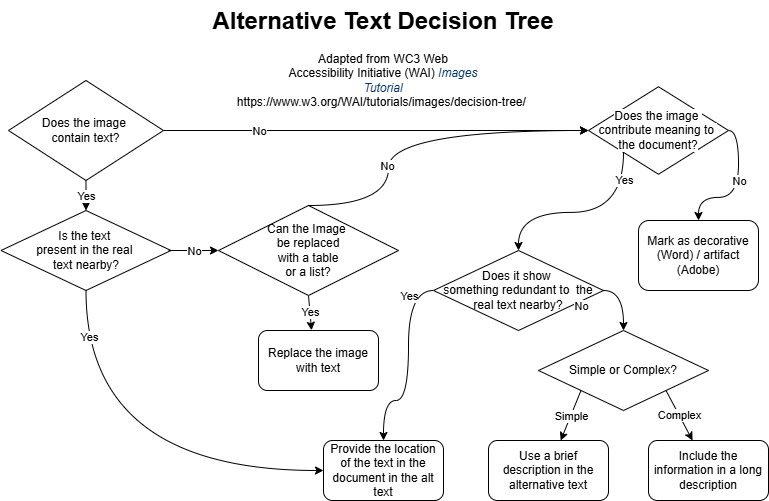
This decision tree is designed to help you determine how to handle alternative text for informational images. Because this figure is complex, it needs a long description. I used an AI Image Accessibility Creator tool developed by ASU EdPlus, to draft alt-text, a long description, and a transcription. Then, I carefully edited the image breakdown to correct mistakes and convey the message more clearly. Note that I could have edited the image to remove the title and source information and then added it to nearby text to avoid redundancy.
Alternative Text Decision Tree
Long Description of “Alternative Text Decision Tree”
A flowchart entitled “Alternative Text Decision Tree” that evaluates how to handle images for accessibility. It is adapted from WC3 Web Accessibility Initiative (WAI) Images Tutorial.
It starts with the question, “Does the image contain text?”
- If YES, it asks “Is the text present in the real text nearby?”.
- If YES, the answer is to “Provide the location of the text in the document in the alt text.”
- If NO, it asks, “Can the image be replaced with a table or a list?”
- If YES, the answer is to “Replace the image with text.”
- If NO, the path directs to the next question.
- If there is NO text, or you can’t replace the image with text, it asks, “Does the image contribute meaning to the document?”
- If NO, the answer is to “Mark as decorative (Word) / artifact (Adobe).”
- If YES, it asks “Does it show something redundant to the real text nearby?”
- If YES, the answer is to “Provide the location of the text in the document in the alt text.”
- If NO, it asks “Simple or complex?”
- If SIMPLE, the answer is to “Use a brief description in the alternative text.”
- If COMPLEX, the answer is to “Include the information in a long description.”
Placement of Long Descriptions
It’s best to put long descriptions near the image they are describing, with a note in the alt-text indicating that the description is nearby. They can be at the end or in a separate area of the document, in which case you can add a link from the image to the long description, and another from the long description back to the image. In the alt-text, say something like “See the link below the image for an extended description.”
In summary, the old adage that “A picture is worth a thousand words” takes on new implications when it comes to accessibility. If you are using an image to convey valuable information to your reader, it’s worth the effort to make your message clear to all readers by putting it into words.
Resources
Alternative Text
- Alternative Text | WebAIM
- Authoring Meaningful Alternative Text | Section 508.gov
- Web Development/HTML -Images Tutorial | WC3
- Image Alternative Text – ADA Compliance | Tracy Bryant, Blogs.IFAS
- When to Add Alternative Text to An Image for Accessibility [in T4] | Tennille Herron, Blogs.IFAS
Long Descriptions
- Guide to Writing Long Descriptions | AccessiblePublishing.ca
- Image Accessibility Creator | ASU EdPlus
Accessibility in MS Office
- Microsoft Word – Create Accessible Images and Other Objects
- Microsoft PowerPoint – Adding Alternative Text to Images and Other Objects
- Microsoft Excel – Adding Alternative Text to Images and Other Objects
 3
3