Using Canva to create designs for your programs and events doesn’t need to be difficult. With its intuitive drag-and-drop, vast library of images, and design elements, you can create on brand and professional-looking graphics. It’s perfect for beginners who want to create social media posts, presentations, or flyers without the steep learning curve of traditional design software. But where do you get started if you’ve never used Canva, or want to brush up on your skills? Check out these resources:

1. Canva Design School: canva.com/design-school/
To get the most out of Canva, you can turn to Canva Design School, a free resource packed with tutorials, courses, and tips found directly on the Canva.com website. It offers step-by-step guidance on everything from basic design principles to mastering specific tools within Canva and is available to anyone with a Canva.com account. (That’s you!)

2. LinkedIn Learning: https://www.linkedin.com/learning/search?keywords=canva
Another great way to learn Canva is through LinkedIn Learning, which offers a variety of expert-led courses tailored to different skill levels. These courses cover everything from Canva basics to more advanced design techniques. Available to anyone with a MyUFL login, you can learn at your own pace and even earn certificates to showcase your skills on your LinkedIn profile. Simply type “Canva” into the search bar to find the content.
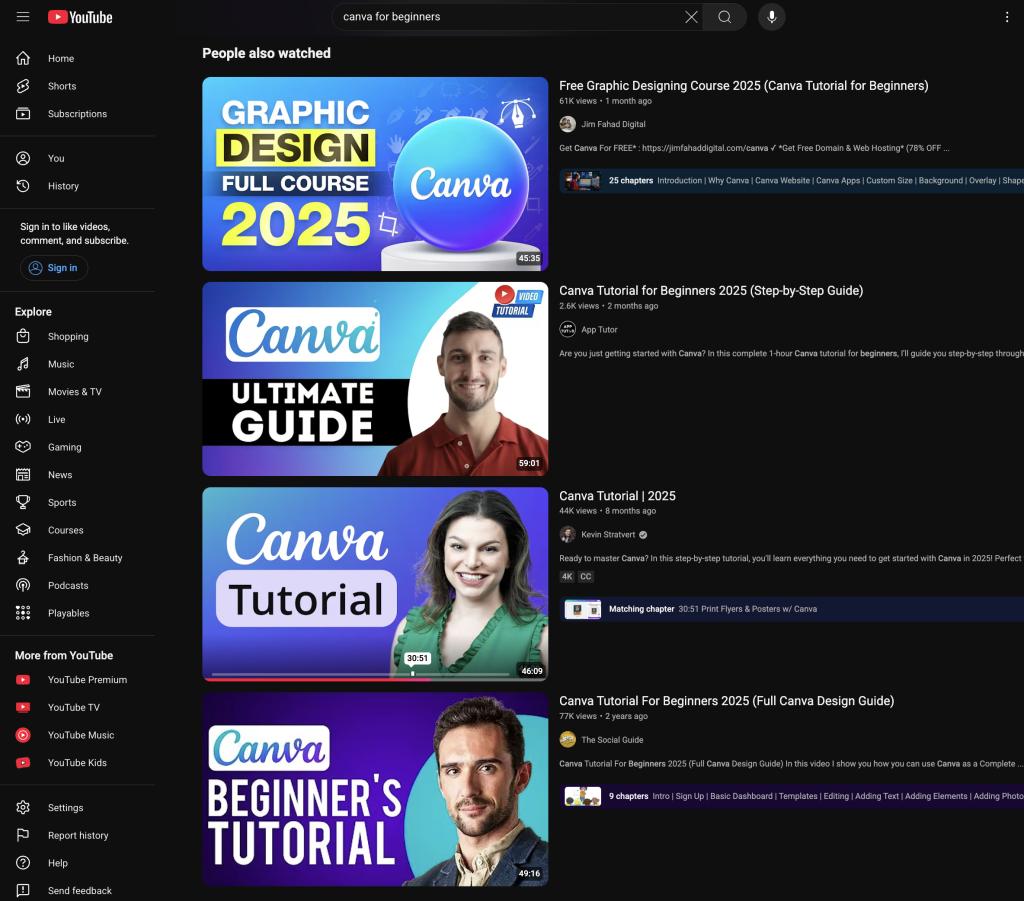
3. YouTube: https://www.youtube.com/results?search_query=canva
YouTube has thousands of free video tutorials available, ranging from quick tips to in-depth walkthroughs on creating specific types of designs. Many content creators break down complex features into easy-to-follow steps, making it ideal for visual learners. Plus, you can find tutorials tailored to your own skill level without needing a subscription. You can visit the official Canva Youtube page at youtube.com/@canva, or use the search term “Canva” to see other content creators.
Learning to use Canva as a non-designer is easier than ever thanks to the wide range of accessible resources available. With a little practice and the right guidance, anyone can create beautiful, professional-quality designs with confidence.
Note: Remember that the designs you create in Canva are not already ADA Accessible. If you export a PDF of your design for distribution, you will need to send your document to our Accessibility Specialist to review and prepare for screen readers.
Need professional design help? Contact UF/IFAS Communications by submitting an Asana Request to get started.
 0
0