Frequent EDIS users occasionally have discovered an error with slow downloads & freezing. The problem actually pertains to all pdfs, not just EDIS. This problem appears to have occurred through the years in various versions, browsers, operating systems, and configurations, and occurs erratically, affecting one person in an office and not their coworkers.
It appears to have to do with the video/graphic display, and here are some steps you can take to fix the problem. Please let me know if it does not work.
- Open a saved pdf outside the browser — it should open without freezing.
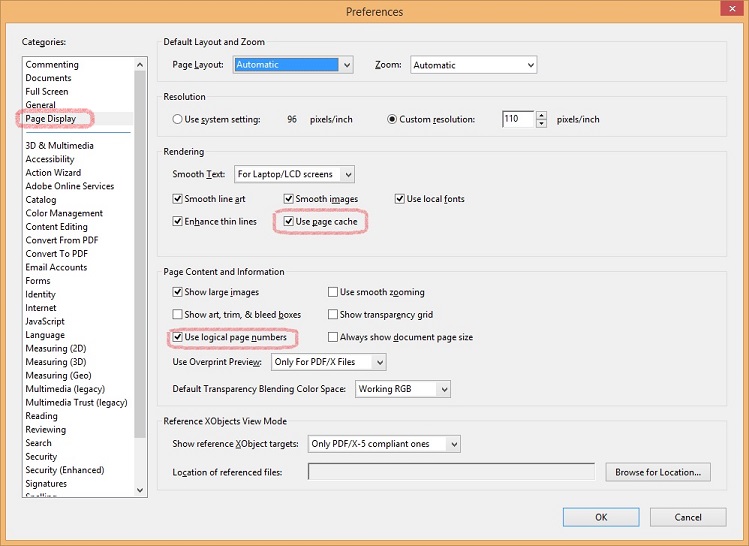
- Under Edit Menu, select “Preferences…” and choose Page Display (Shortcut: Ctrl + K)
- Uncheck “Use page cache” and “Use logical page numbers”
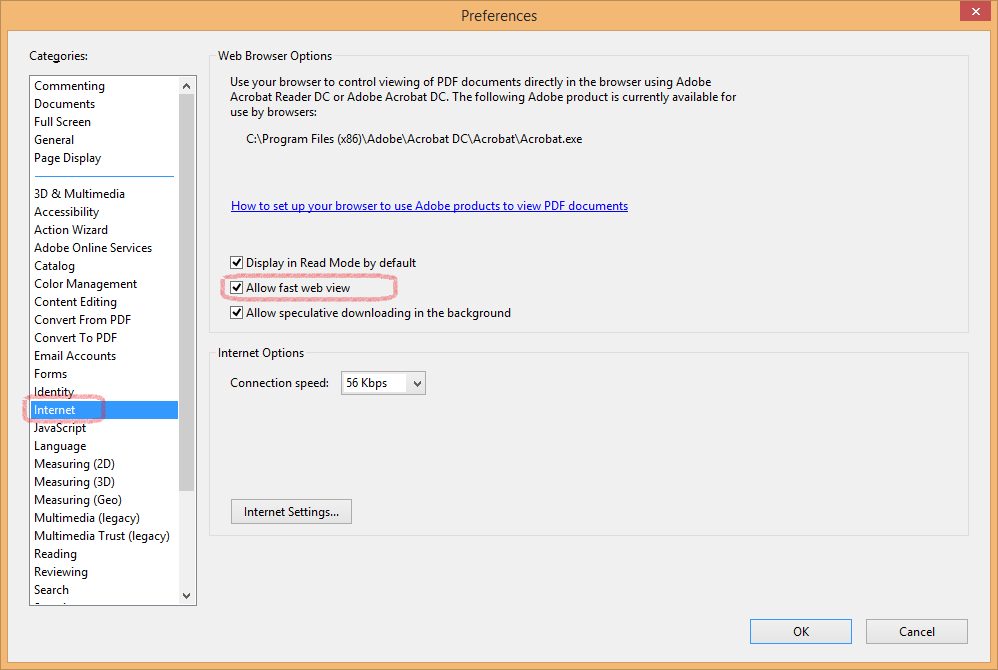
- Select “Internet” in left hand sidebar
- Uncheck “Allow fast web view”
- If problems persist, uncheck “Display PDF in browser” and try “Allow speculative downloading in the background”
Saving a pdf without opening it
If you need to open a pdf, right click on “download pdf” link in EDIS document, and use “save target as..” to download the pdf then open it outside your browser.
Unfreezing your browser
If your browser freezes with the pdf, hover over the browser button on the start menu bar until the window(s) appear above it, and close the frozen browser window by clicking on the red X there.